




You installed a VPN app. Now what actually turns it on — and how do you know it's really protecting you? Here is how to set up a VPN on iPhone in three steps, including the one step most guides leave out.
Does iPhone have a built-in VPN?
No. iOS has no built-in VPN service of its own. The Settings → VPN row is only a connector — it stays empty until a VPN app installs its configuration profile, or until you hand-configure an IKEv2, L2TP, or IPSec server yourself.
iCloud Private Relay isn't a VPN either. It's a paid iCloud+ feature that sends only Safari traffic through two relays, with no coverage for your other apps and no choice of country. Treat it as a Safari privacy add-on, not a VPN.
How to set up a VPN on iPhone
Step 1 — Connect from the app
Any modern VPN app handles the setup for you. Install it, sign in, and tap connect. The first time, iOS asks permission to add a VPN configuration — approve it, and the app installs the profile automatically. Once connected, the app shows the location it routes you through.
Step 2 — Where is the VPN setting on iPhone (on and off)
iOS keeps the switch at Settings → General → VPN & Device Management → VPN. Open it and you'll see VPN Status with a toggle. That toggle is how you turn on VPN on iPhone without opening the app — and, just as important, how you turn off VPN on iPhone when you're done. Flip it off here, or disconnect in the app, and the tunnel drops. Whenever a VPN is active, a small VPN badge sits in the status bar.
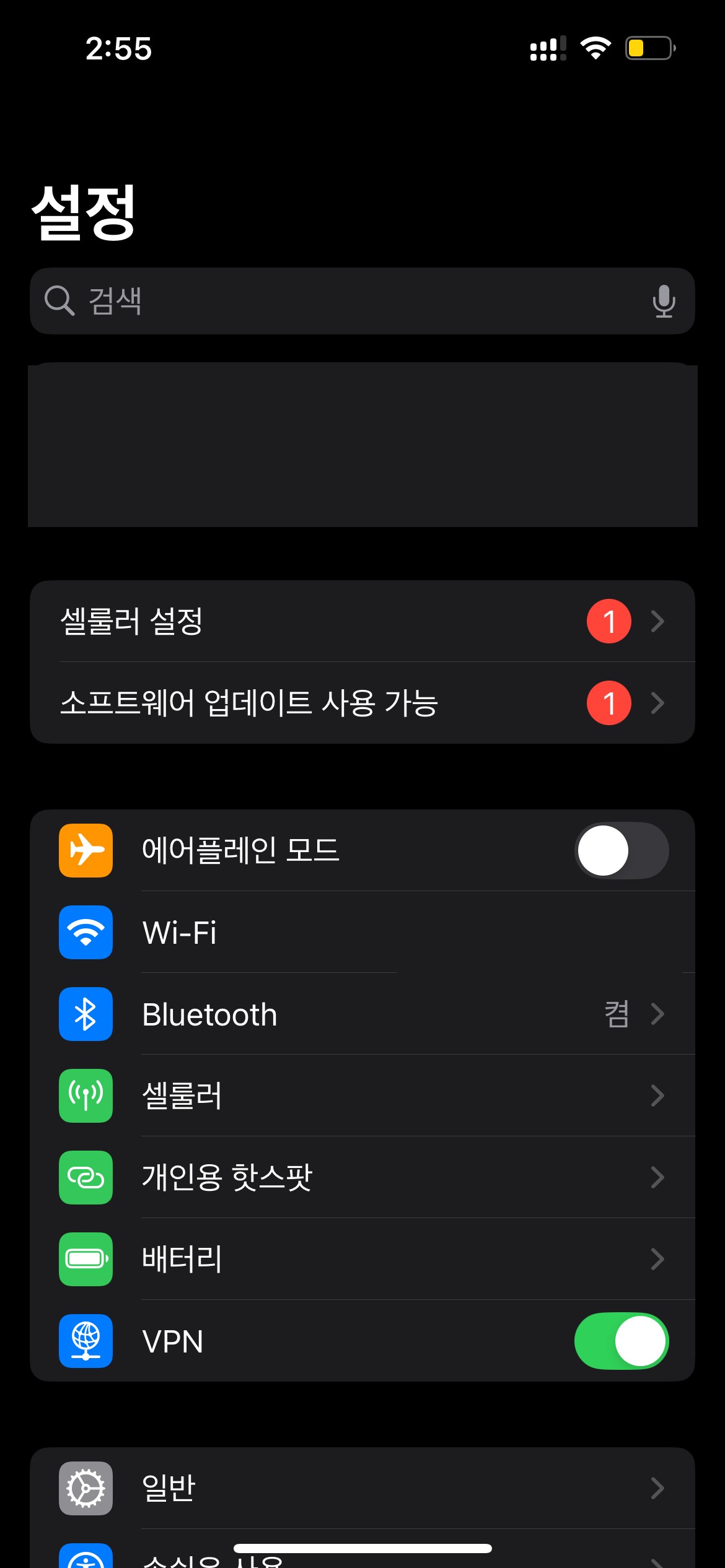
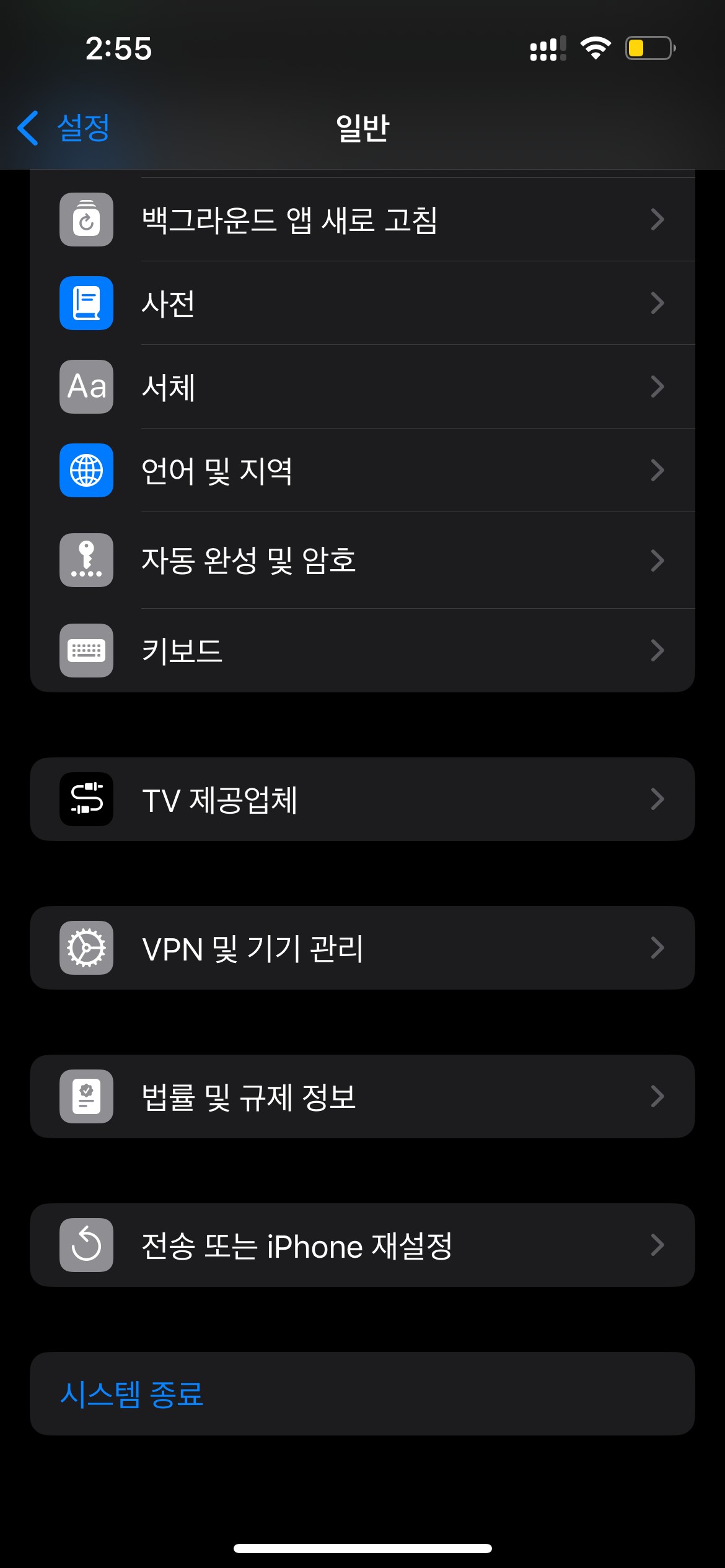


The path to the switch: Settings → General → VPN & Device Management → VPN. The last screen is where VPN Status and the toggle live.
Step 3 — The step guides skip: airplane mode off and on
Here is the part that matters and almost no guide mentions. When the tunnel comes up, connections that were already open don't move into it. They keep talking outside the VPN, still carrying your real IP.
After you connect, toggle airplane mode off and on. That forces those open connections to re-establish inside the tunnel.[2]
Re-run it whenever it matters, because it's a mitigation and not a fix. iOS won't let a VPN app tear down existing connections, and Apple's own services — push notifications, for one — are built to hold a persistent connection, so they drift back outside the tunnel over time.[3] We explained why that happens in Your iPhone Ignores Your VPN.[1]
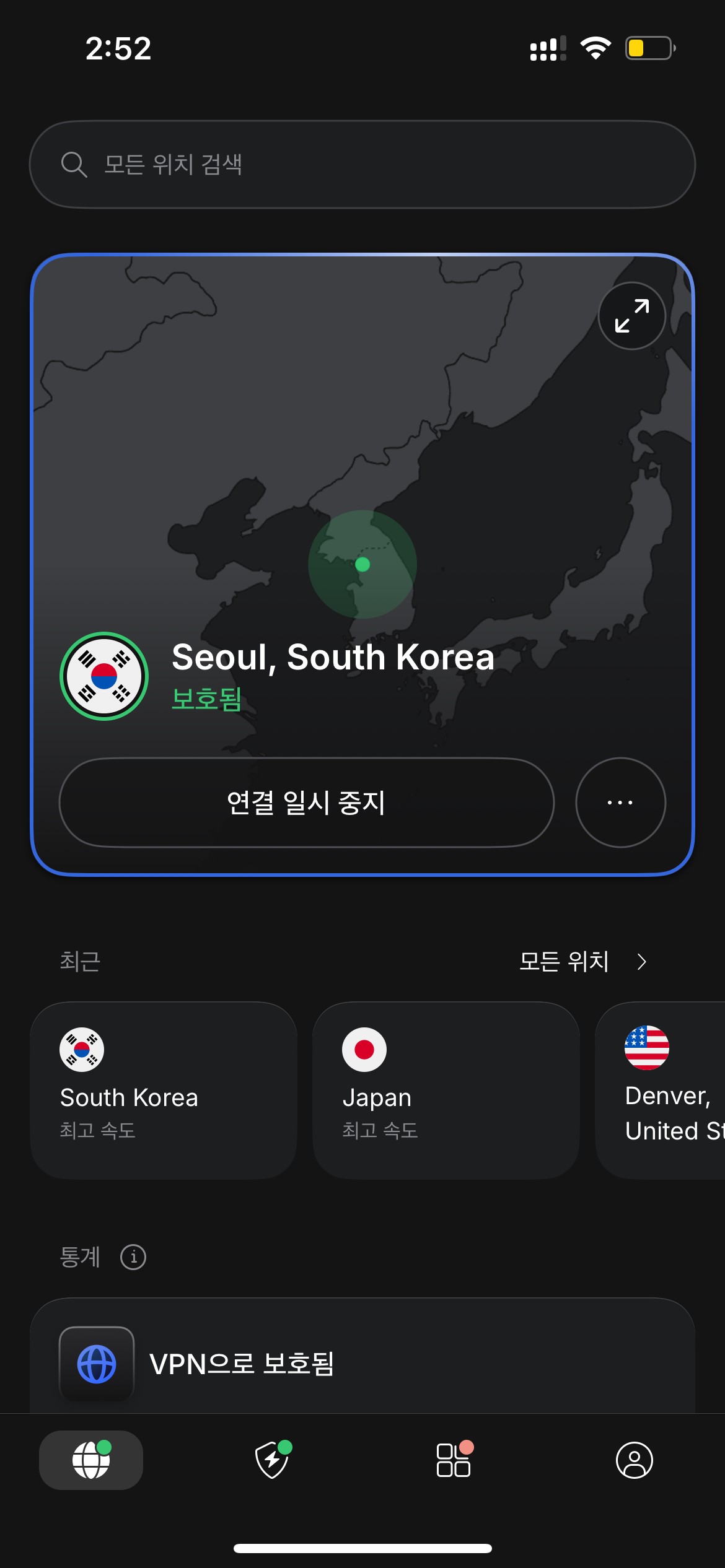
Set up and connected: an example VPN app routing through a chosen location, marked "Protected."
After you switch on a VPN, how do you actually confirm every connection moved inside the tunnel — or do you just trust the toggle?
References
- Panke, "Your iPhone Ignores Your VPN" — /en/blog/2026-06-11/iphone-ignores-your-vpn
- ProtonVPN, "VPN bypass vulnerability in Apple iOS (disclosure)" — https://protonvpn.com/blog/apple-ios-vulnerability-disclosure
- SecurityWeek, "No Patch for VPN Bypass Flaw Discovered in iOS" — https://www.securityweek.com/no-patch-vpn-bypass-flaw-discovered-ios/
 Instagram