




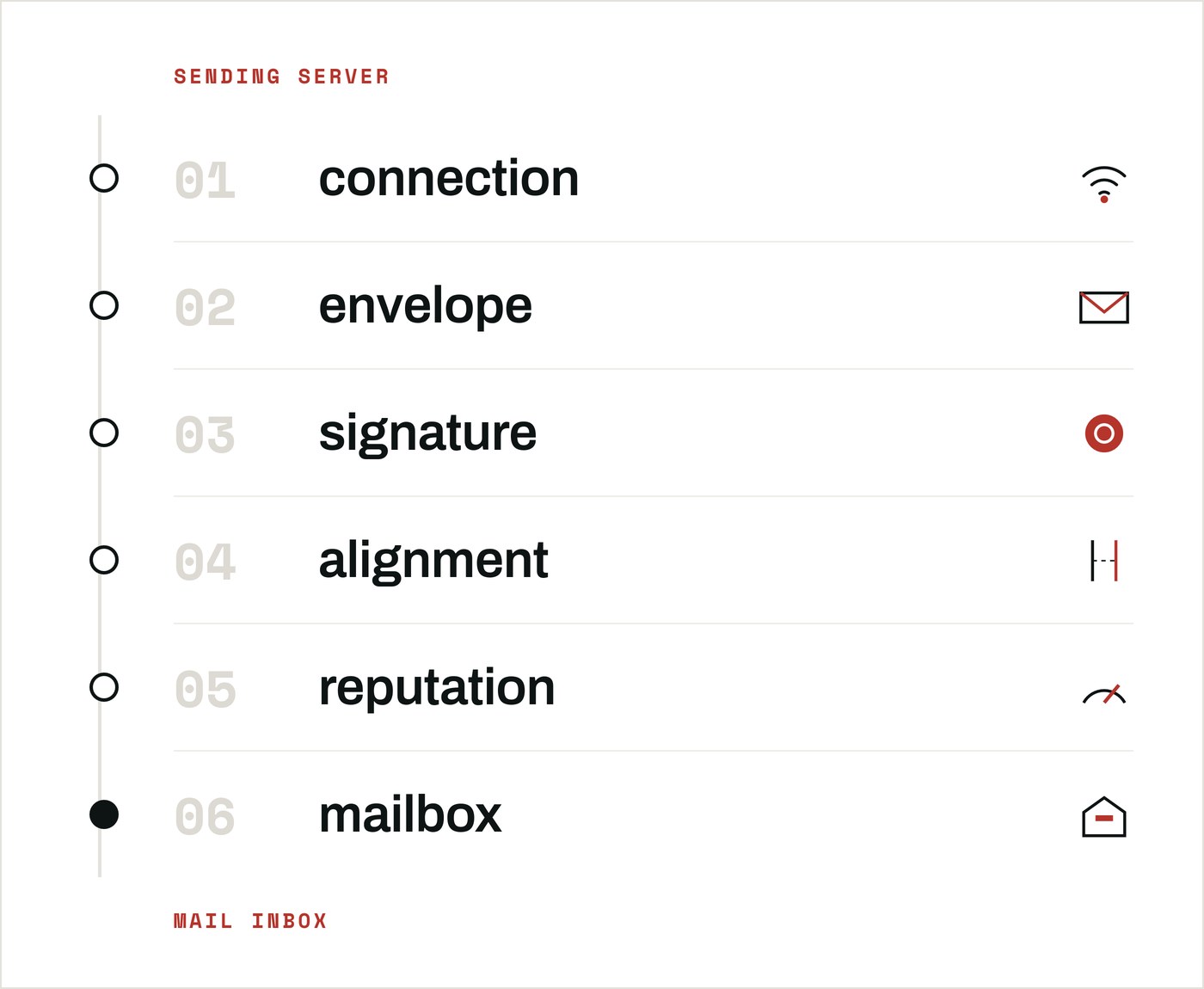
An email is judged six times before someone ever reads it. In this guide, let's trace a single message from the sending server to the receiving inbox and try to understand what happens at each step.
Six checks
Email was designed without any of this. Microsoft's own documentation puts it plainly:
"By design, Simple Mail Transfer Protocol (SMTP) email on the internet makes no effort to validate that the message sender is who they claim to be."
Every security measure was "patched" on top of the old protocols, one layer at a time, until we ended up with the spaghetti that is modern email security.
Nowadays, there are at least six checks that an email message goes through:
- Connection — checks endpoint and protocol.
- Envelope — SPF checks the network address.
- Signature — DKIM checks a cryptographic signature.
- Alignment — DMARC checks alignment with what email clients display.
- Reputation — complex dynamic checks (Heuristics, Machine Learning).
- Mailbox — what the email client does with the arriving message.
Step 1 — connection
The receiving server knows the connecting IP address and can look up its history. A sending address with no reverse DNS record or part of a blocklist can be rejected here.
Google made this check explicit for every sender. Since 1 February 2024, Google's sender requirements demands valid forward and reverse DNS records, a TLS connection, and messages formatted to RFC 5322.
Regarding TLS, RFC 8461 defines MTA-STS. A domain can publish a policy saying that senders should refuse to deliver to its mail servers unless a valid TLS connection is to be offered. RFC 8460 gives domain owners TLS failure reports.
Step 2 — SPF
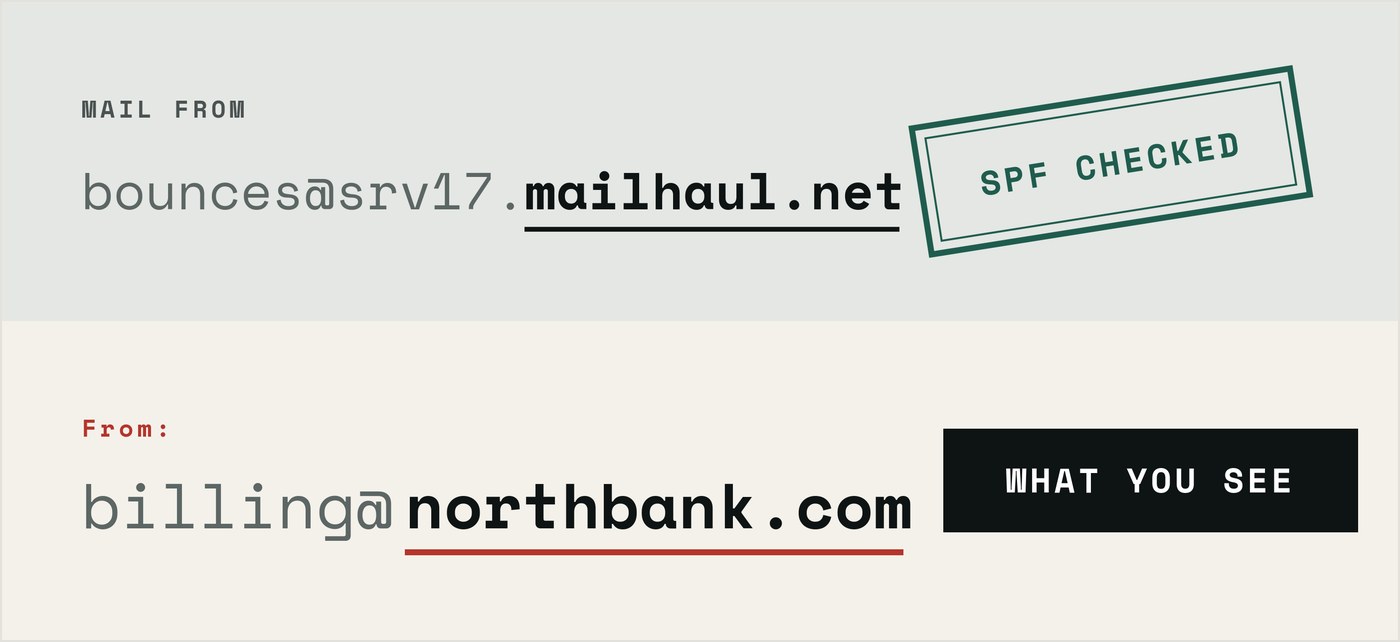
An SMTP message carries two sender addresses: MAIL FROM and From. MAIL FROM is used to wire the message between servers and ends up in the
Return-Path header. The From address is what a mail client displays.
SPF, as defined in RFC 7208,
relies on MAIL FROM.
The domain publishes a TXT record naming the servers allowed to send for a domain, and the receiver checks the connecting IP against it:
v=spf1 include:_spf.google.com -all
Two things about SPF surprise people who assume it protects their brand:
- SPF doesn't care about
From. A message can pass SPF and display a completely different domain inFrom. - There's a limited lookup budget. Every
include,a,mx,ptr,existsandredirectterm costs a DNS query, and the standard caps them:
RFC 7208 §4.6.4: "SPF implementations MUST limit the total number of those terms to 10 during SPF evaluation, to avoid unreasonable load on the DNS. If this limit is exceeded, the implementation MUST return 'permerror'."
Admins should be careful to avoid hitting the limit: once you take into account the CRM, invoicing tool, helpdesk etc, it's easy to see how you could hit 10 terms and break all mail delivery.
In the last part of an SPF policy, -all tells receivers an unlisted server is
not authorised, while ~all tells receivers to go easy on it:
RFC 7208 §8.5: "Receiving software SHOULD NOT reject the message based solely on this result, but MAY subject the message to closer scrutiny than normal."
~all is a reasonable place to start when first configuring SPF. The problem
is stopping there.
When we read the SPF records of 5,798 .co.kr domains, 85.6% of them ended in
~all, against 53.6% worldwide.
SPF breaks in one ordinary situation: forwarding. When a message is relayed, the sending server changes, and the forwarding server is not in the original domain's SPF record. Which brings us to the check that survives that trip all the way through: DKIM.
Step 3 — DKIM
DKIM, specified in RFC 6376,
takes a different approach than SPF. The sending server signs the message body
and a selected set of headers with a private key, and attaches the signature as
a DKIM-Signature header. The matching public key sits in DNS at
<selector>._domainkey.<domain>, and any receiver can fetch it and verify.
Unlike SPF, the signature rides inside the message, which means DKIM survives forwarding.
DKIM has the mirror image of SPF's blind spot. The domain in the signature's
d= tag does not have to match the domain in From.
DKIM also has no concept of key expiration. The published key record has no expiry field, and nothing in the standard has ever required rotation. A key published in 2015, for instance, can still keep working today, which is convenient but also potentially dangerous.
Step 4 — DMARC
Two checks have passed, and neither has touched the field your reader actually
reads: From. DMARC is the layer that closes that gap.
DMARC compares the domain in From against the domains that just passed SPF and
DKIM, and requires at least ONE of them to align. Notice that DMARC has no way
to enforce both SPF AND DKIM to pass. If you require that level of security,
you might have to rely on separate internal company policies.
The DMARC policy tells the receiver what to do when neither SPF or DKIM passes:
p=none, p=quarantine or p=reject, published in a TXT record at
_dmarc.<domain>.
The current specification is RFC 9989, published in May 2026 and the first version of DMARC on the IETF Standards Track.
It is important to know which document you are reading, because most setup
guides still describe its predecessor, RFC 7489 — including Microsoft's own
DMARC configuration page, which still teaches the pct tag that RFC 9989
removed.
The standard is unambiguous about a domain that publishes nothing:
RFC 9989 §4.10.1: "If the set produced by the DNS Tree Walk contains no DMARC Policy Record (i.e., any indication that there is no such record as opposed to a transient DNS error), Mail Receivers MUST NOT apply the DMARC mechanism to the message."
A receiver that finds no record is told to skip the check entirely.
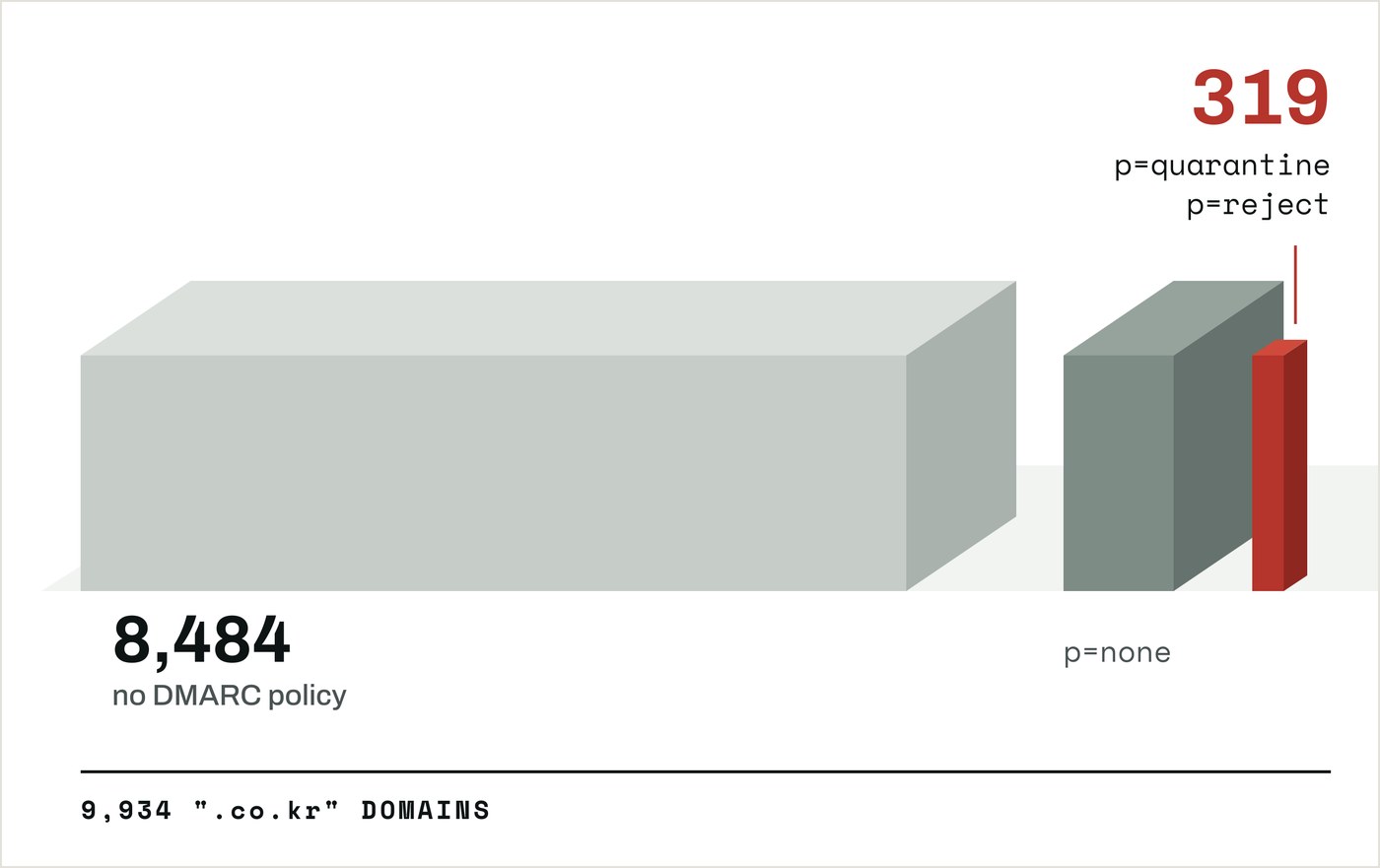
We measured this across 10,135 Korean domains. Of the 9,934 that answered,
8,484 publish no usable
policy and only 319
ask a receiver to act on mail that fails. Of the 1,450 that do publish a policy,
only 666 set a rua address.
rua is the data feedback mechanism domain owners are entitled to. Without
specifying an email address in rua, you have no concrete measure of whether
DMARC is being followed or how much mail is failing it.
Step 5 — reputation
Authentication answers whether a message is genuine, not whether anyone wants to receive it. Receiving servers judge that aspect separately.
As a real world example of how reputation is handled, Microsoft combines the
standard checks with a proprietary combination of signals — sender reputation,
sender history, recipient history, behavioural analysis — into a single value it
calls composite authentication, stamped into the Authentication-Results header
as compauth. Its documentation is careful about what that value does:
"It's important to understand that a composite authentication failure doesn't directly result in a message being blocked. Our system uses a holistic evaluation strategy that considers the overall suspicious nature of a message along with composite authentication results."
Recently tools like Abnormal Security have resorted to Machine Learning to classify an email as dangerous or unwanted. Some enterprises also have multiple layers of protection. A common setup might be:
- Mimecast proxy: runs rules based on realtime threat and spam campaigns and patterns. The idea is to prevent malicious emails and links from even reaching the actual receiving server.
- Microsoft Exchange Mail Server runs the email through standard reputation checks and custom rules.
- Abnormal Security's Machine Learning might quarantine or erase the email AFTER being delivered to the inbox.
Step 6 — mailbox
What happens after a message arrives in the mailbox depends on the mail client software you use.
Some factors that vary depending on the client are: whether to fetch remote images automatically, whether to rewrite links through a scanning service, and whether to show an external-sender banner.
We tested this ourselves at Panke by sending tracked messages to six mailboxes and opening each one. Gmail and Apple Mail fetched the tracking image on our behalf, so the sender learned nothing about where we were sitting. Naver, Kakao, Daum and Outlook fetched it from our own device and handed over our address, our network and our browser.
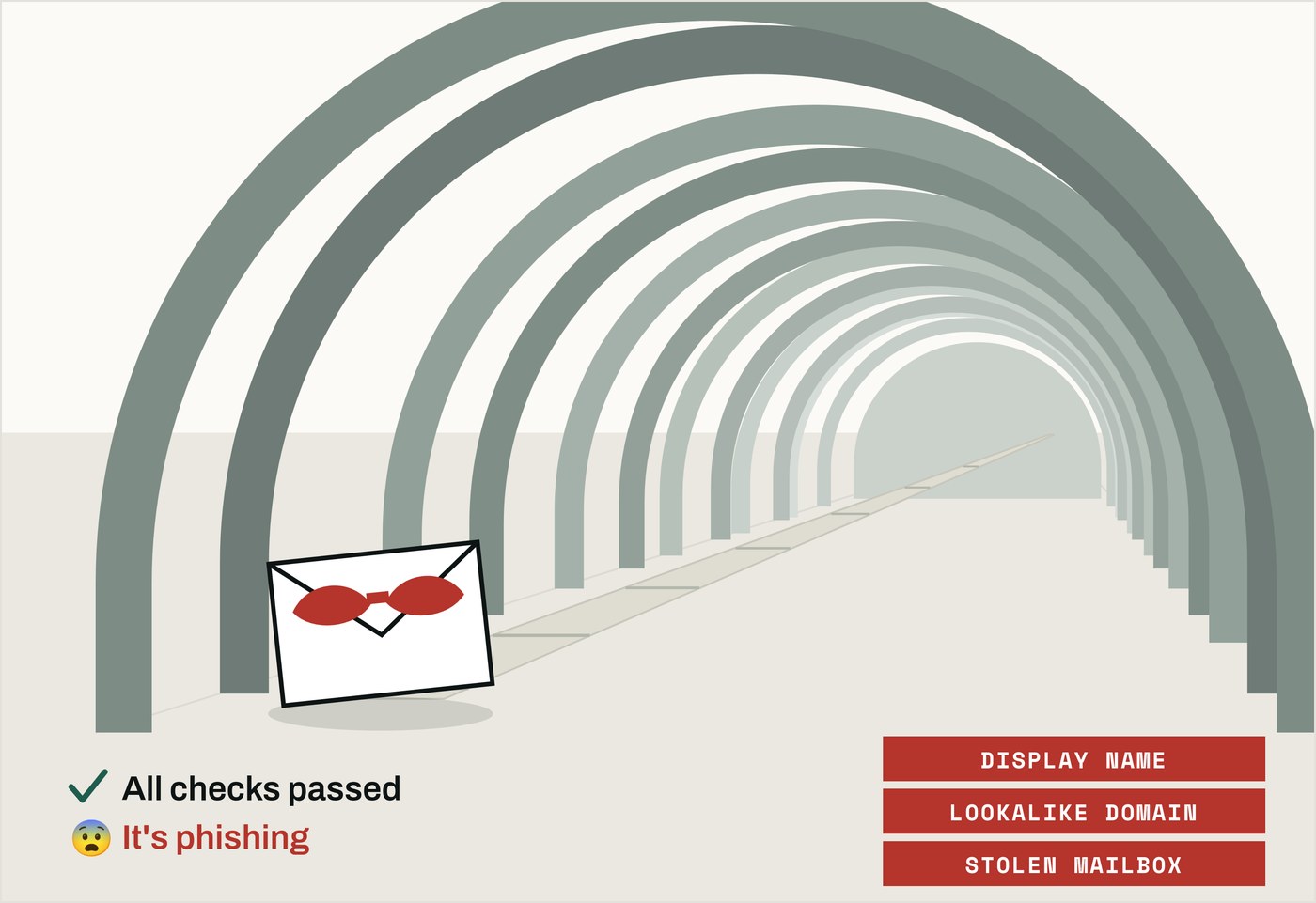
Example attacks that pass all checks
The most sophisticated email attacks can pass every check above and still cause Business Email Compromise (BEC). Here are three classic tactics:
Display-name spoofing. Set the display name to someone you know.
Lookalike domains. A registered domain that reads like yours.
A compromised mailbox. An attacker sends from a real account whose password they stole. The mail is genuinely coming from within your company so there's little to nothing that email security software can help with at that point.
The FBI's 2025 Internet Crime Report logged 24,768 business email compromise complaints and around 3 billion dollars in reported losses, second only to investment fraud among cyber-enabled crime types and part of a record $20 billion in total reported losses.
Evidently, the six checks are a MUST, but they don't guarantee protection. In a future blog, we will go over additional security measures you can take to protect your organization from email-based cyber attacks.
How to check your own domain
Here are three DNS lookups you can run right now to check where your domain stands in terms of message authentication. Each of the three has a post of its own, so here we only cover the basics.
DMARC.
dig +short TXT _dmarc.yourcompany.com
Red flags:
- An empty answer (receivers are told to skip DMARC)
p=none- No
ruaaddress
For more details on DMARC, check out our census of 10,135 Korean domains.
SPF.
dig +short TXT yourcompany.com
Find the line starting v=spf1. Red flags include:
include:pointing to a domain or address you don't recognize+allmeans nothing is enforced~allmeans there's room to improve. It might be worth looking into migrating to-all.- Having more than 10 terms that cost a DNS query can make all email delivery fail.
Our post The state of SPF in Korea
covers what ~all and -all means in more detail.
DKIM.
dig +short TXT google._domainkey.yourcompany.com
Note the selector google in the example above. Looking just at DNS you can't
tell what selectors you might have. You might need to take a look at your DNS
configuration, DKIM-Signature header of delivered mail or try the common ones:
google, default, selector1.
Our post Why DKIM never required key rotation covers key sizes and when some thoughts on when to rotate the DKIM key.
References
- IETF — RFC 9989: Domain-based Message Authentication, Reporting, and Conformance (DMARC) (May 2026; obsoletes RFC 7489 and RFC 9091)
- IETF — RFC 7208: Sender Policy Framework (SPF) for Authorizing Use of Domains in Email, Version 1 (April 2014)
- IETF — RFC 6376: DomainKeys Identified Mail (DKIM) Signatures (September 2011)
- IETF — RFC 8461: SMTP MTA Strict Transport Security (MTA-STS) (September 2018)
- IETF — RFC 8460: SMTP TLS Reporting (September 2018)
- Microsoft Learn — How email authentication works in Microsoft 365 (updated 17 July 2026)
- Google Workspace Admin Help — Email sender guidelines (requirements for all senders effective 1 February 2024)
- FBI Internet Crime Complaint Center — 2025 Internet Crime Report (1,008,597 complaints, $20.877 billion in reported losses)
- Panke — Email spoofing: we tested 10,000+ Korean domains (1 September 2026)
- Panke — The State of SPF - Korea (3 September 2026)
- Panke — Opening an email can be dangerous (31 August 2026)

 Instagram